AI Features
1. KodeFlex Introduction
1.1 About KodeFlex
2. Installing KodeFlex
2.1 Windows One-Click Installer
2.2 Linux One-Click Installer
2.3 Installing ZAI Service
2.4 Installing from the Source Package (All Operating Systems)
3. Upgrading KodeFlex
4. Platform
4.1. Application Management
4.1.1 Create an Application
4.1.2 Maintenance Application
4.2. Module Design
4.2.1 About the Module
4.2.2 Main Table Design
4.2.3 Sub-table Design
4.2.4 Action Design
4.2.5 Label Design
4.2.6 More Settings
4.2.7 Release Deactivated Modules
4.3. AI Features
4.3.1 Intelligent Conversation
4.3.2 Agent
4.3.3 Skill
4.3.4 Model List
4.4. Application Instance Management
4.4.1 Maintenance Instance
4.4.2 Navigation Menu
4.4.3 Data Source
4.4.4 Validation Rules
4.4.5 Approval Process
4.5. User
4.5.1 Maintain Users
4.5.2 Maintenance Department
4.6. Permissions
4.6.1 Maintenance Permissions
4.7. System
4.7.1 Company
4.7.2 Backup
4.7.3 Authorization Information
4.7.4 Safety
4.7.5 Timing
4.7.6 Time zone
4.7.7 LDAP
5. Business Applications
5.1 Access Applications
5.2. Backend
5.2.1 Personnel Management
5.2.2 Access Management

Intelligent Conversation

2026-07-30 16:22:42
haoyonghong
153
Last edited by haoyonghong on 2026-08-05 12:26:04
Share links
The intelligent conversation function can be used for natural language communication with connected large models, where users can obtain information, perform tasks, or solve problems through text input.

1. Dialogue message list

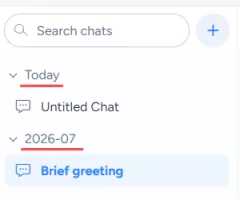
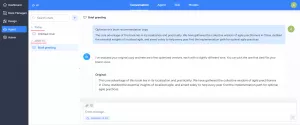
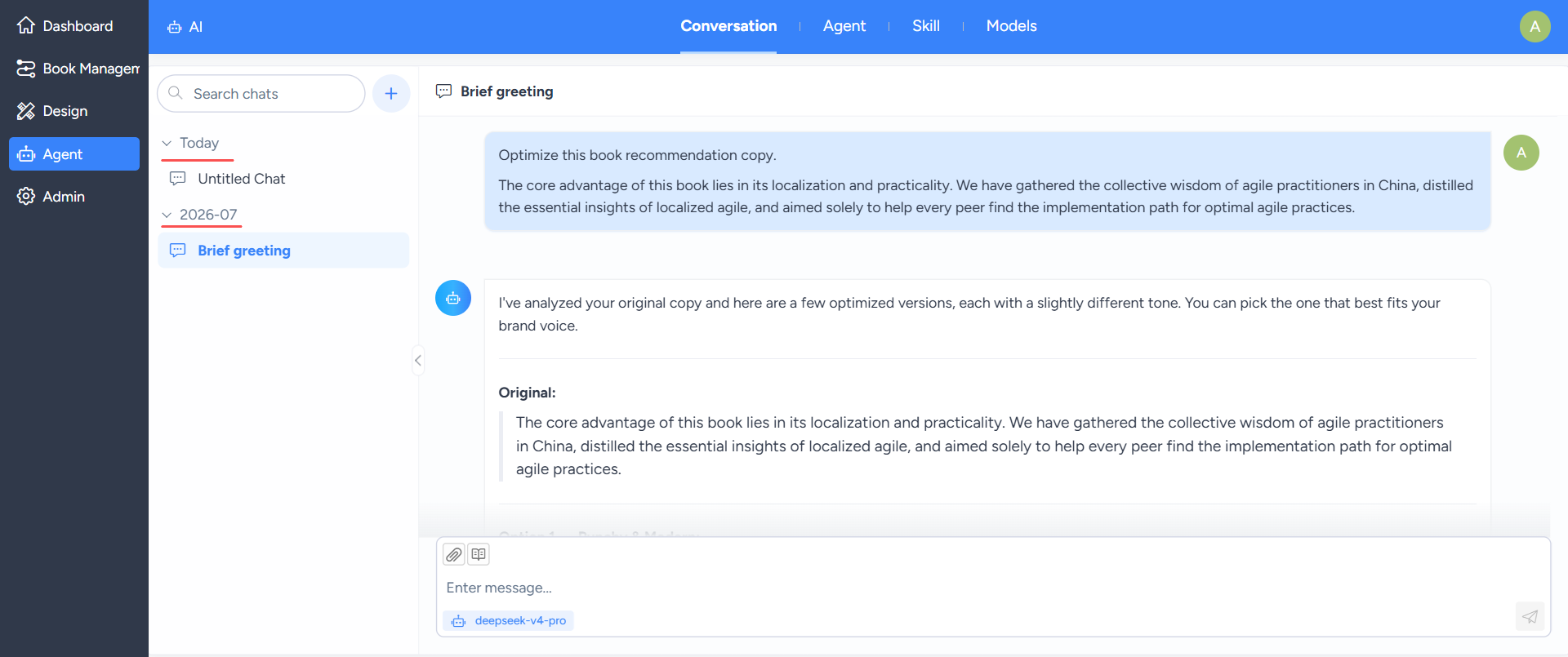
Enter the AI module and default to the intelligent session page. On the left side of the intelligent session is a list of recent conversation messages, grouped according to the session date.
2. Operation of intelligent conversation

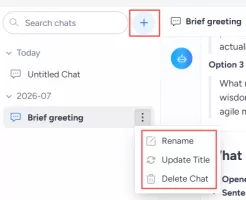
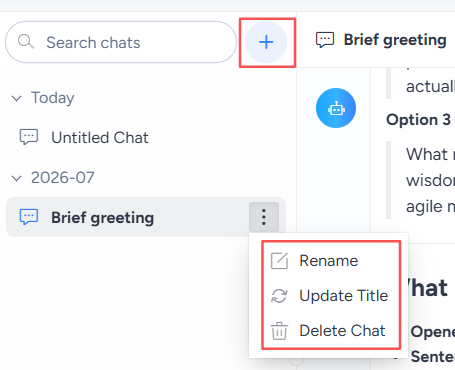
Smart sessions allow for adding, deleting, and renaming. We can add a new conversation by searching for the add button on the right and selecting a session to rename or delete.
3. Intelligent sessions in the business interface

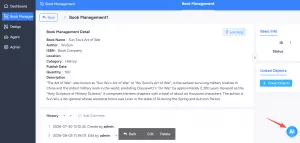
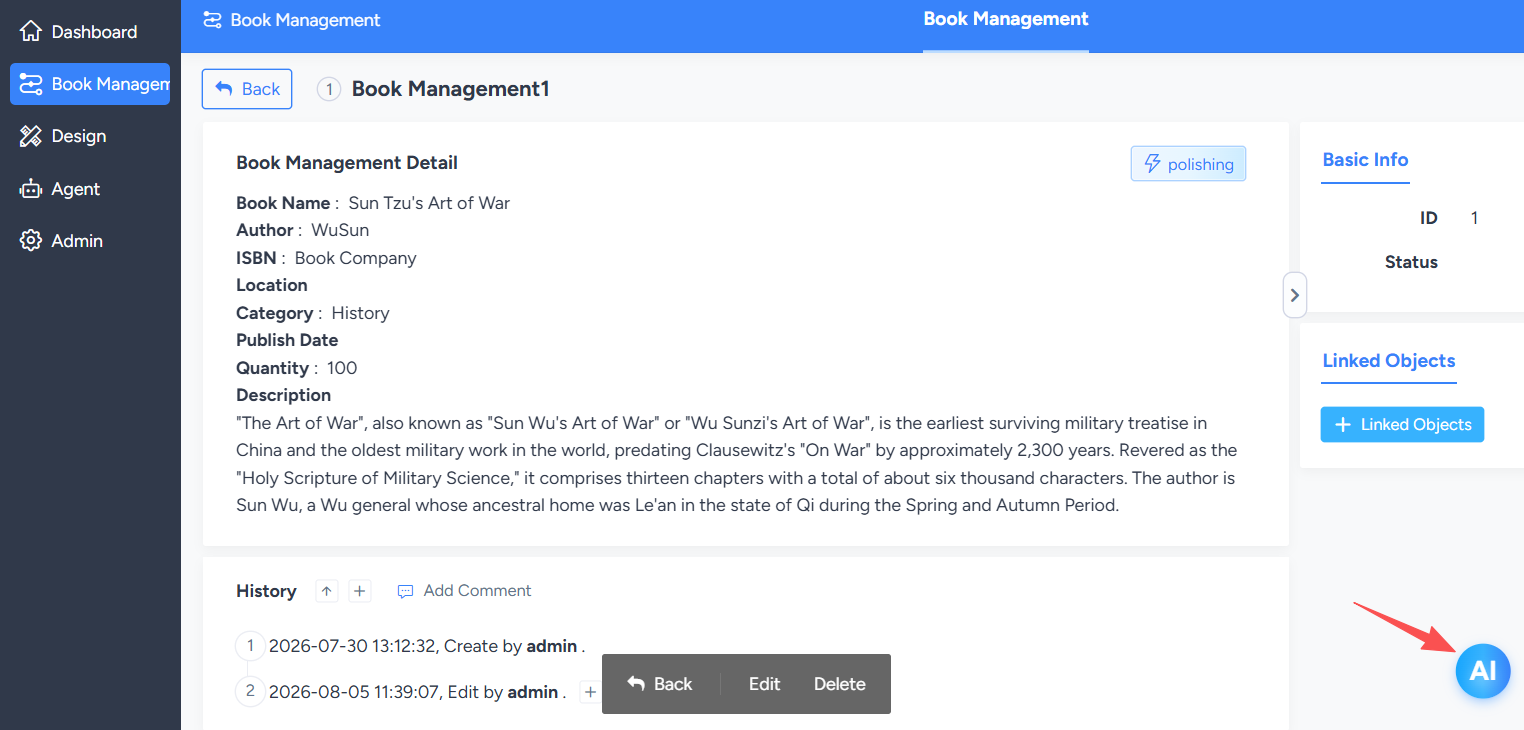
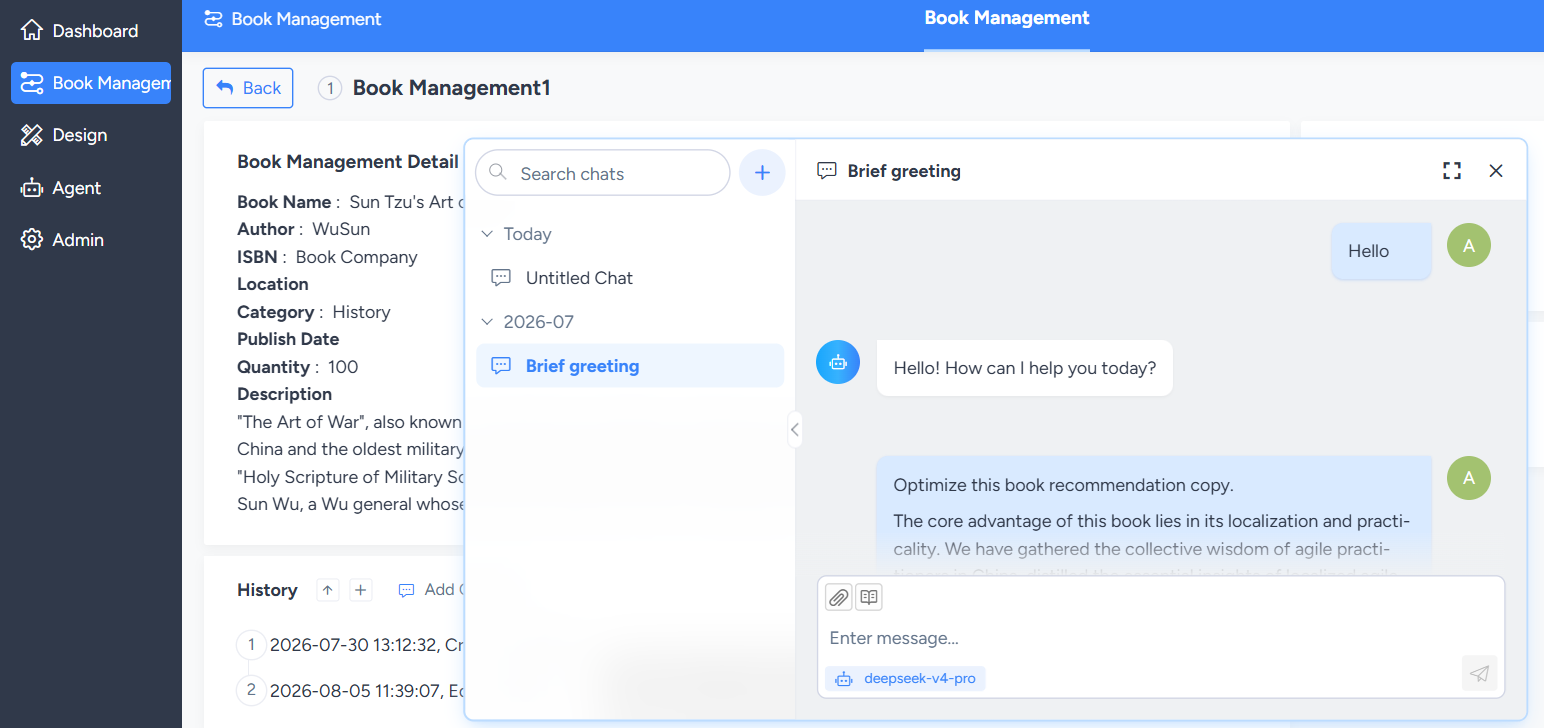
When switching to other pages of the system, the smart session will collapse to the bottom right corner of the page and become an AI ball. 

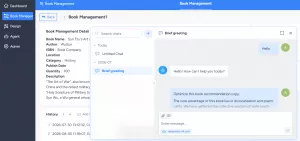
Clicking on the ball will cause an AI conversation window to hover above the current page, with the same functionality as the smart session page.
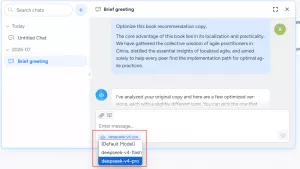
4. Switch the language model of the conversation

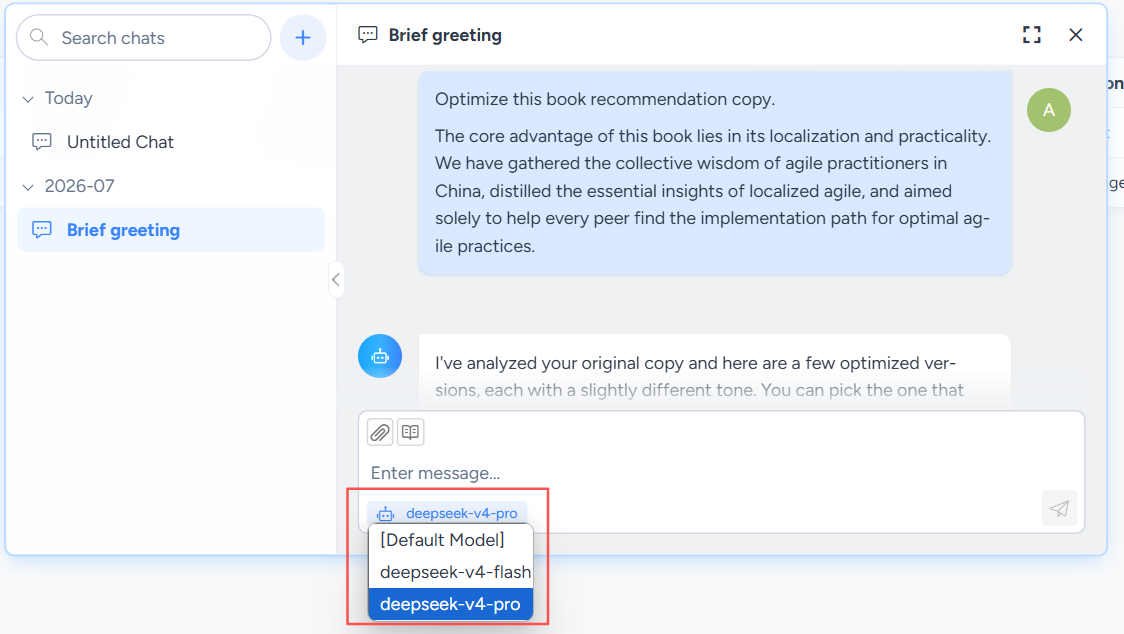
When starting a new smart session, we can switch between the added language models.
Write a Comment
Comment will be posted after it is reviewed.