
Catalog
1. Adding Users
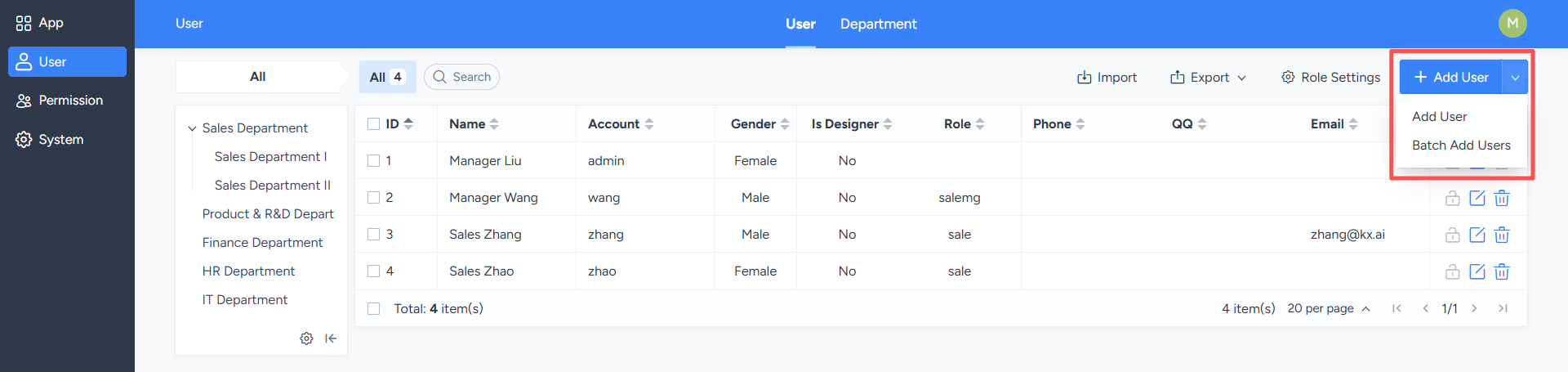
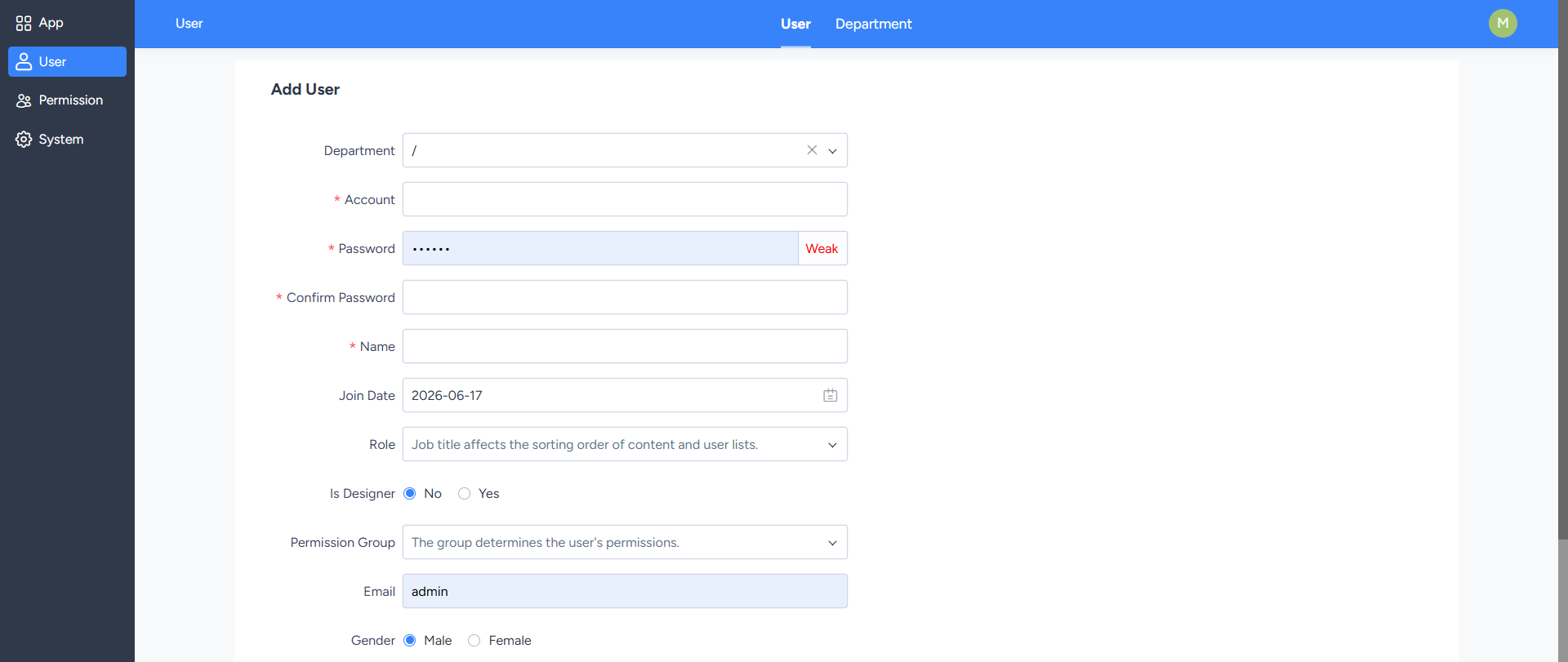
On the "User Management" list page, you can add users, add users in batches, and edit users in batches.Clicking the "Add User" button will take you to the Add User page. Administrators need to maintain basic user information, including: user type, department, username, password, interface type, name, job title, and permission group.
After selecting a job title, the system will automatically assign corresponding permission groups based on the job title. If the default permissions do not meet your needs, you can manually adjust them.
At the bottom of the "Add User" page, in the "Your Password" area, enter the current user's login password and then click "Save." After successfully saving, the system will automatically return to the user list and display the newly added users.
2. Adding Users in Batch
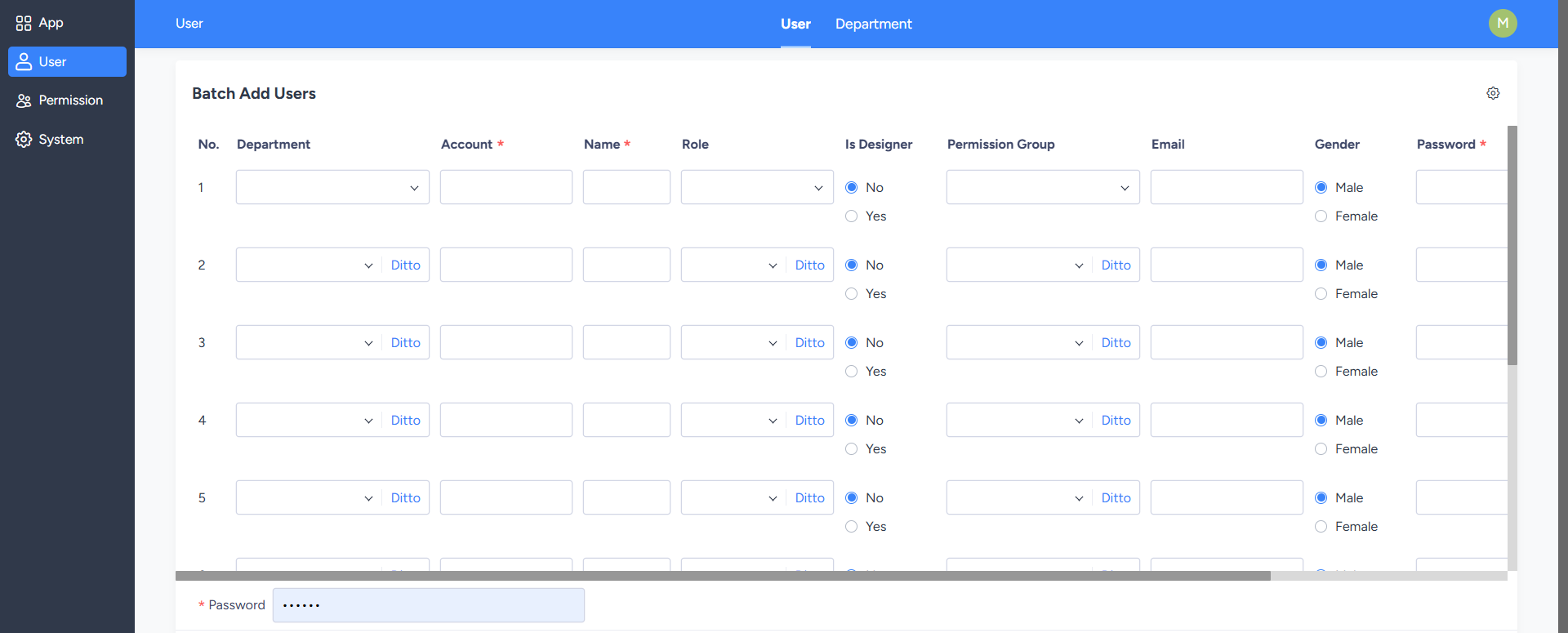
On the user list page, clicking the "Add Users in Batch" button allows you to add multiple users at once.After filling in the user information, enter the current user's login password in the "Your Password" area at the bottom of the page and then click "Save." After successfully saving, the system will automatically return to the user list and display the users you just added in batches.
3. Batch Editing Users
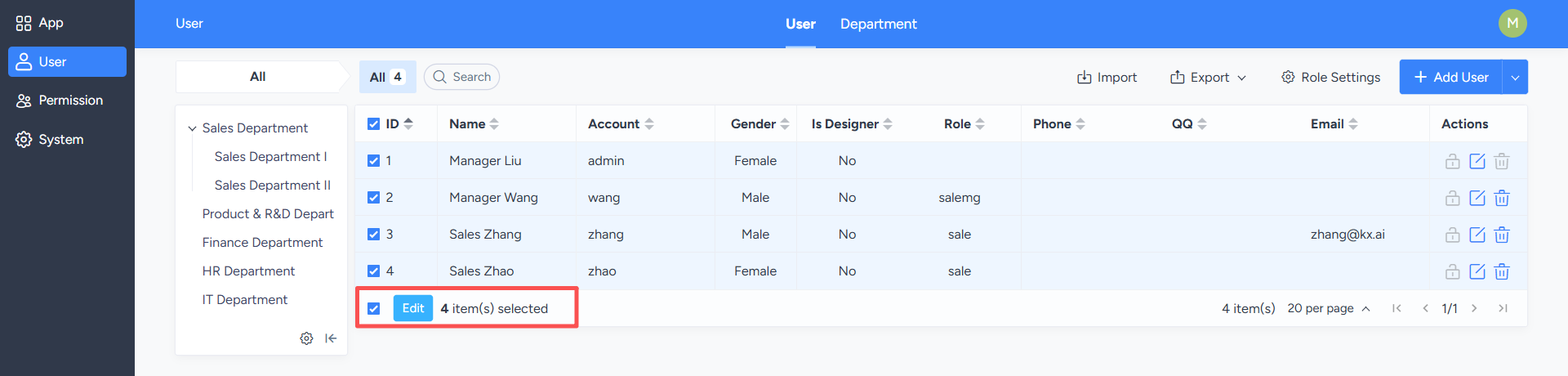
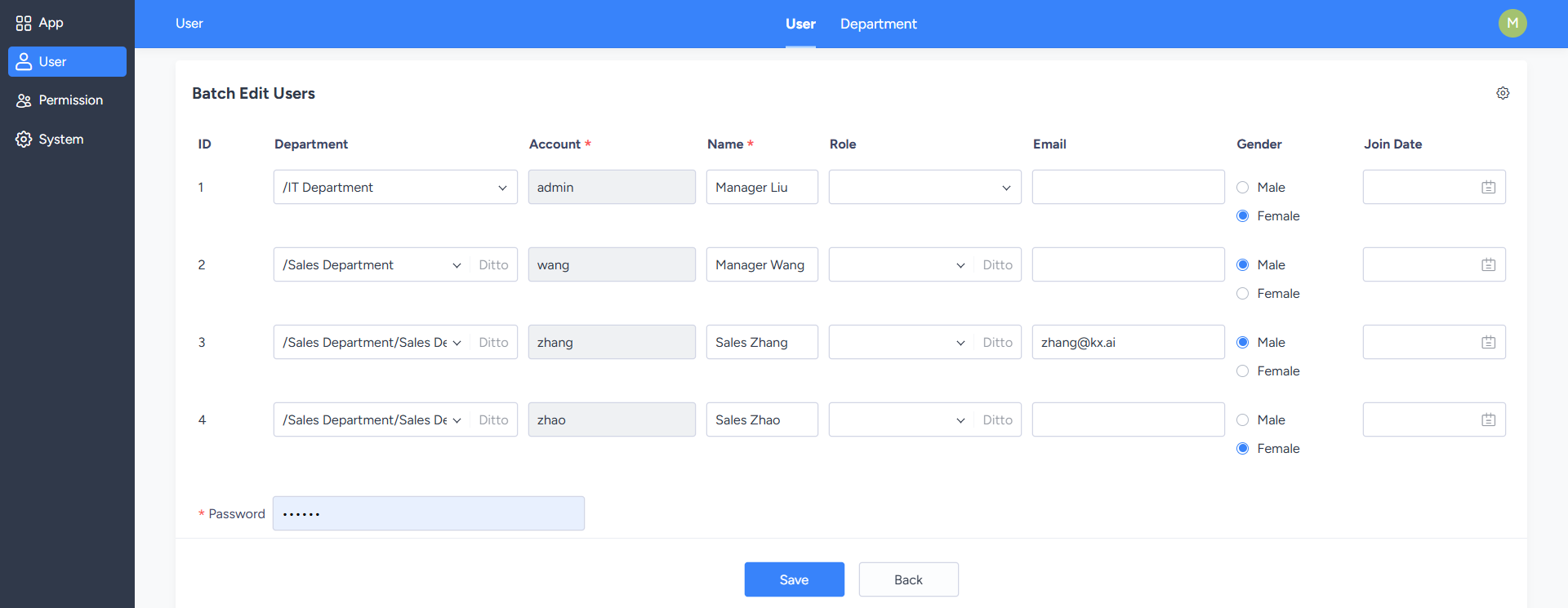
On the user list page, you can click "Select All" or manually select multiple users, then click the "Edit" button to enter the batch editing page.On the batch editing page, you can uniformly modify information such as department and position for the selected users. After saving, the changes will be synchronously applied to the selected users.