Catalog
1. Create Applications with AI
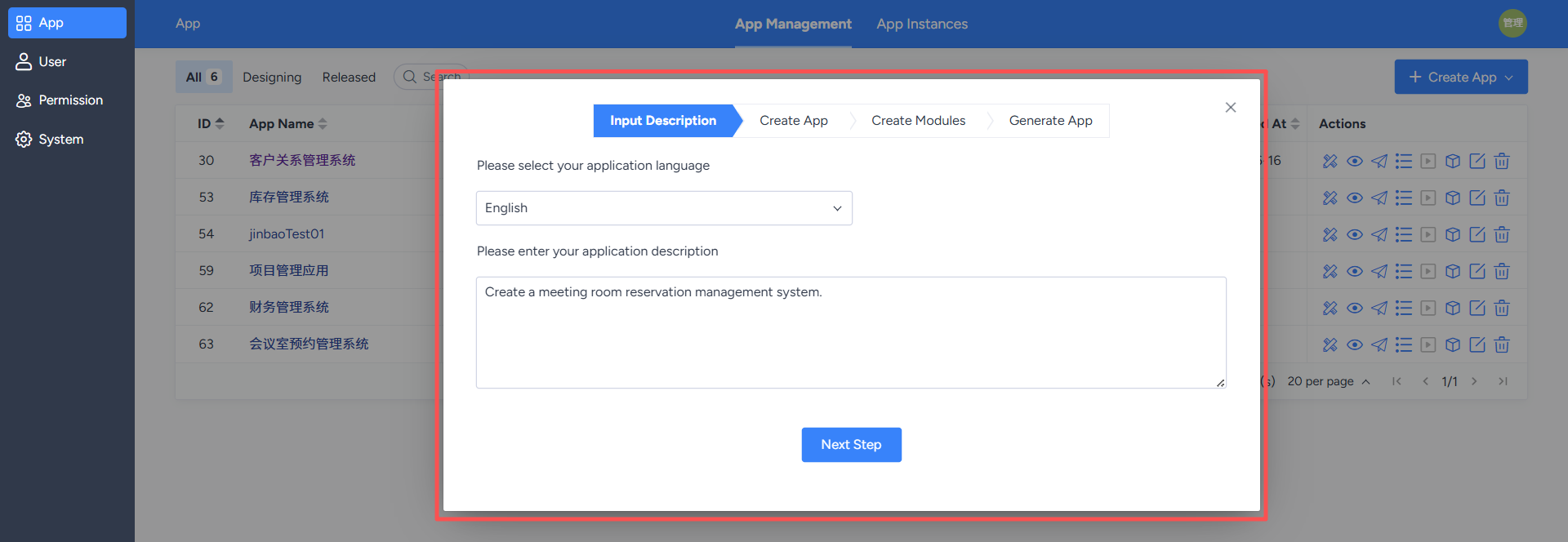
In the "Application Management" list, designers can click the "Create Application" button to create new applications.The system supports two creation methods:
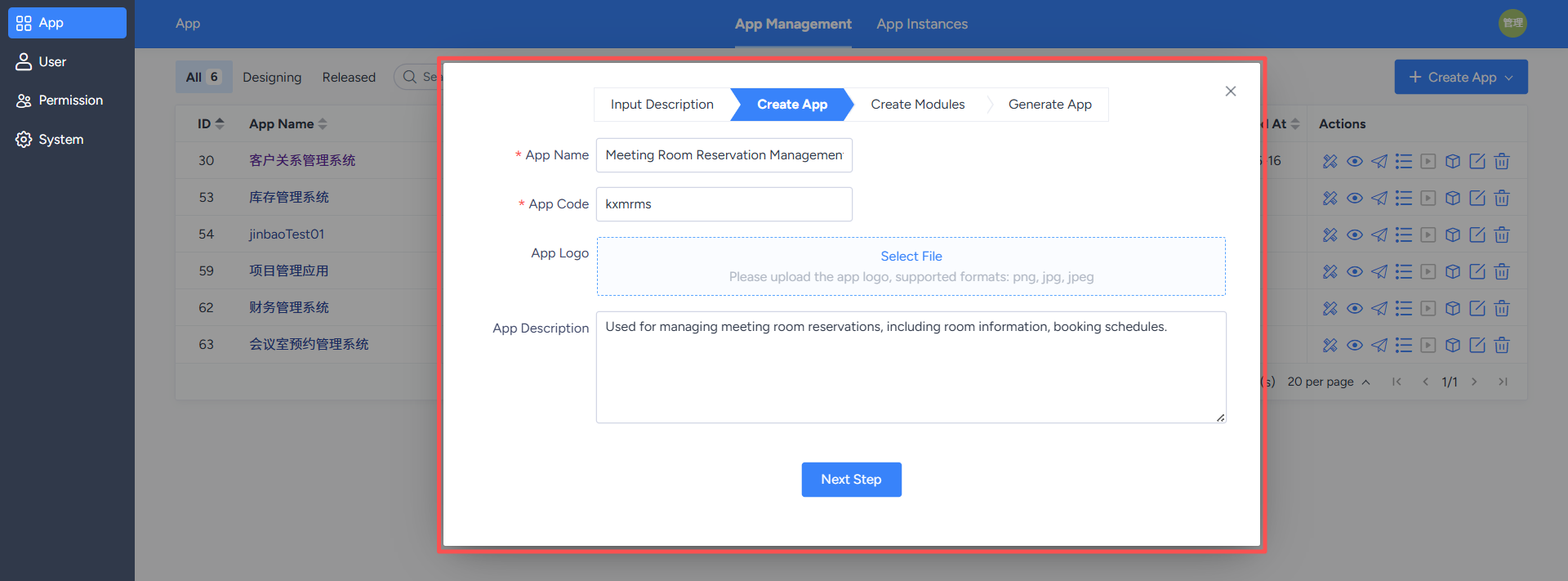
- Create with AI: Designers describe application requirements using natural language, and AI assists in generating application functional modules and related configurations.
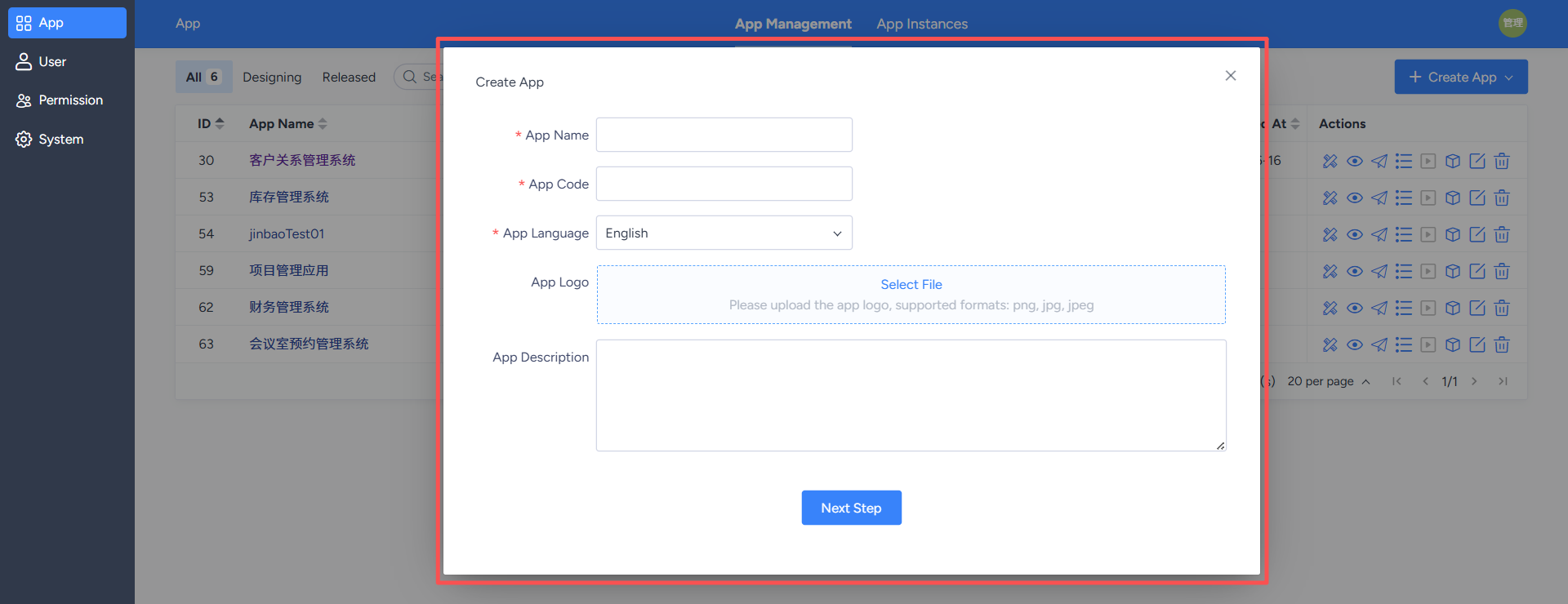
- Create manually: Designers manually fill in application information and complete module and function configurations themselves.
2. Add Functional Modules with One Click using AI
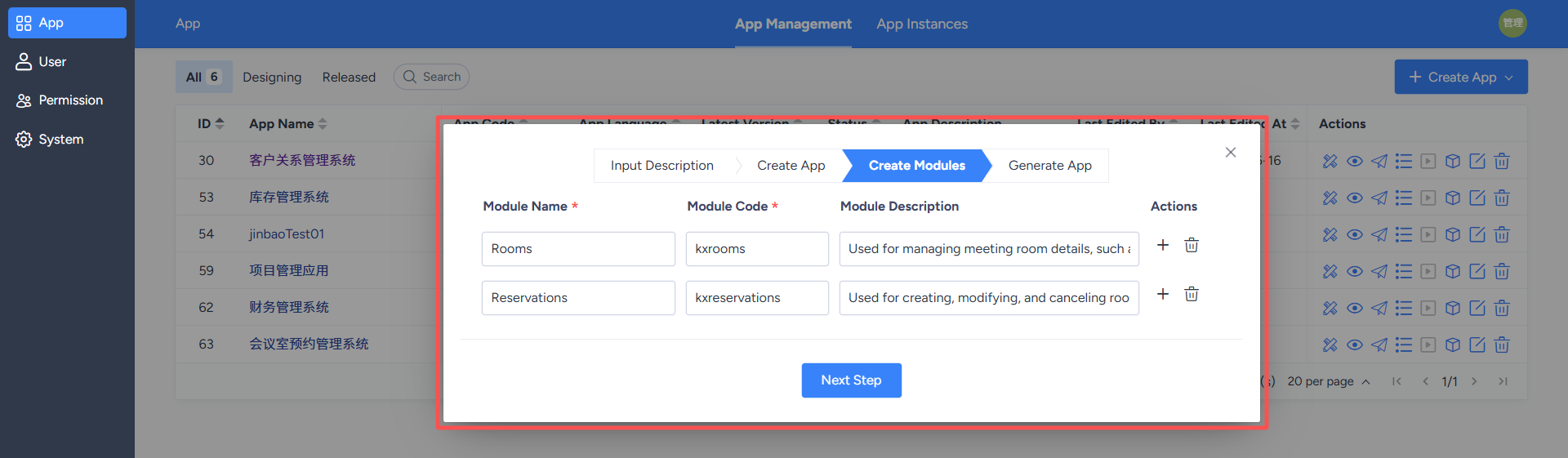
AI will automatically generate corresponding functional module definitions based on the designer's input. After generation, designers can confirm and adjust the module content, including:- Adding new functional modules;
- Deleting unnecessary functional modules;
- Modifying module names or function descriptions;
- Adding business rules or module descriptions.
After adjustments, designers can confirm the functional module definitions and proceed to the application generation step.
3. AI-Powered One-Click Application Generation
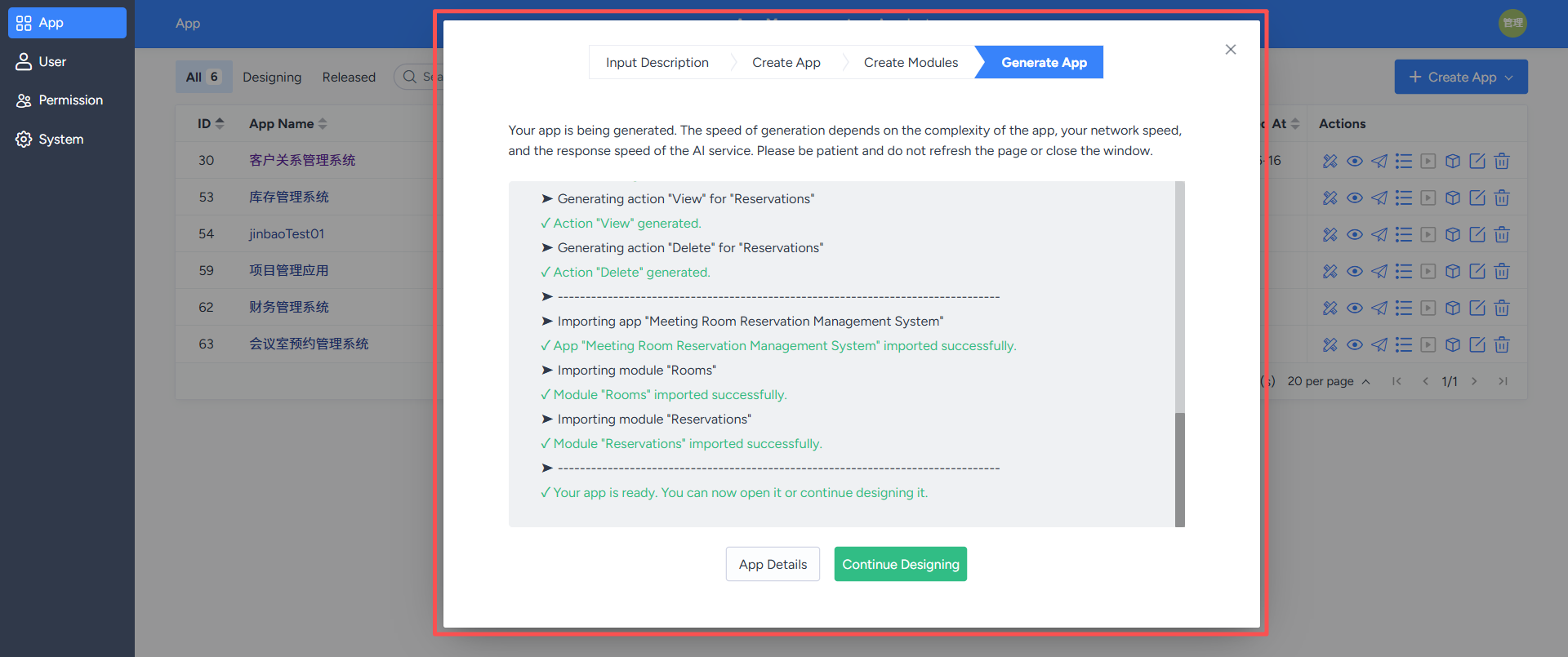
After the designer confirms the functional module definitions, they can generate an application with a single click using AI.The system will automatically generate module configurations containing business logic based on the confirmed functional modules and create the corresponding system application. Once the application is generated, the page will provide entry points for subsequent operations:
- Click "View Application" to access the generated application viewing page;
- Click "Continue Design" to jump to the development example design module for further configuration and refinement of the application.