Application Instance Management
1. KodeFlex Introduction
1.1 About KodeFlex
2. Installing KodeFlex
2.1 Windows One-Click Installer
2.2 Linux One-Click Installer
2.3 Installing ZAI Service
2.4 Installing from the Source Package (All Operating Systems)
3. Upgrading KodeFlex
4. Platform
4.1. Application Management
4.1.1 Create an Application
4.1.2 Maintenance Application
4.2. Module Design
4.2.1 About the Module
4.2.2 Main Table Design
4.2.3 Sub-table Design
4.2.4 Action Design
4.2.5 Label Design
4.2.6 More Settings
4.2.7 Release Deactivated Modules
4.3. AI Features
4.3.1 Intelligent Conversation
4.3.2 Agent
4.3.3 Skill
4.3.4 Model List
4.4. Application Instance Management
4.4.1 Maintenance Instance
4.4.2 Navigation Menu
4.4.3 Data Source
4.4.4 Validation Rules
4.4.5 Approval Process
4.5. User
4.5.1 Maintain Users
4.5.2 Maintenance Department
4.6. Permissions
4.6.1 Maintenance Permissions
4.7. System
4.7.1 Company
4.7.2 Backup
4.7.3 Authorization Information
4.7.4 Safety
4.7.5 Timing
4.7.6 Time zone
4.7.7 LDAP
5. Business Applications
5.1 Access Applications
5.2. Backend
5.2.1 Personnel Management
5.2.2 Access Management

Navigation Menu

2026-06-23 15:02:49
liujinyuan
261
Last edited by haoyonghong on 2026-07-30 15:53:19
Share links
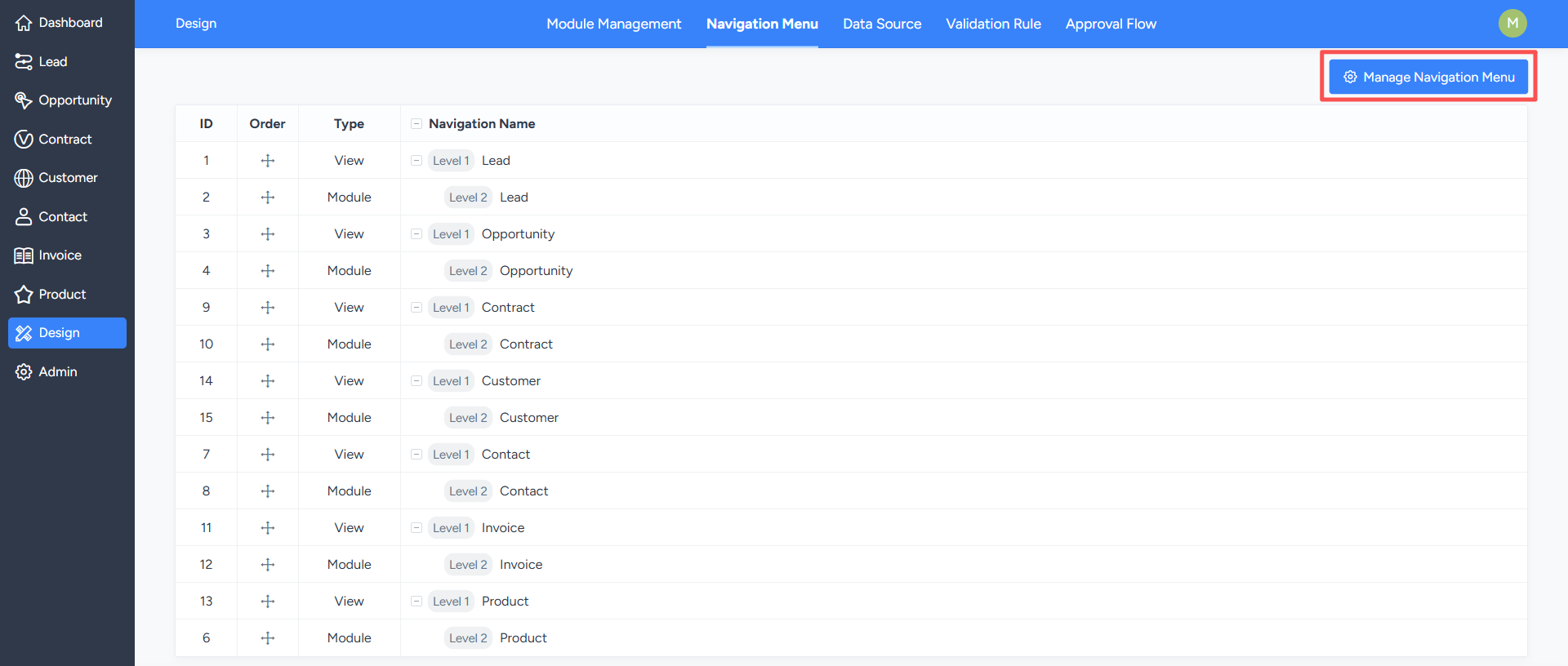
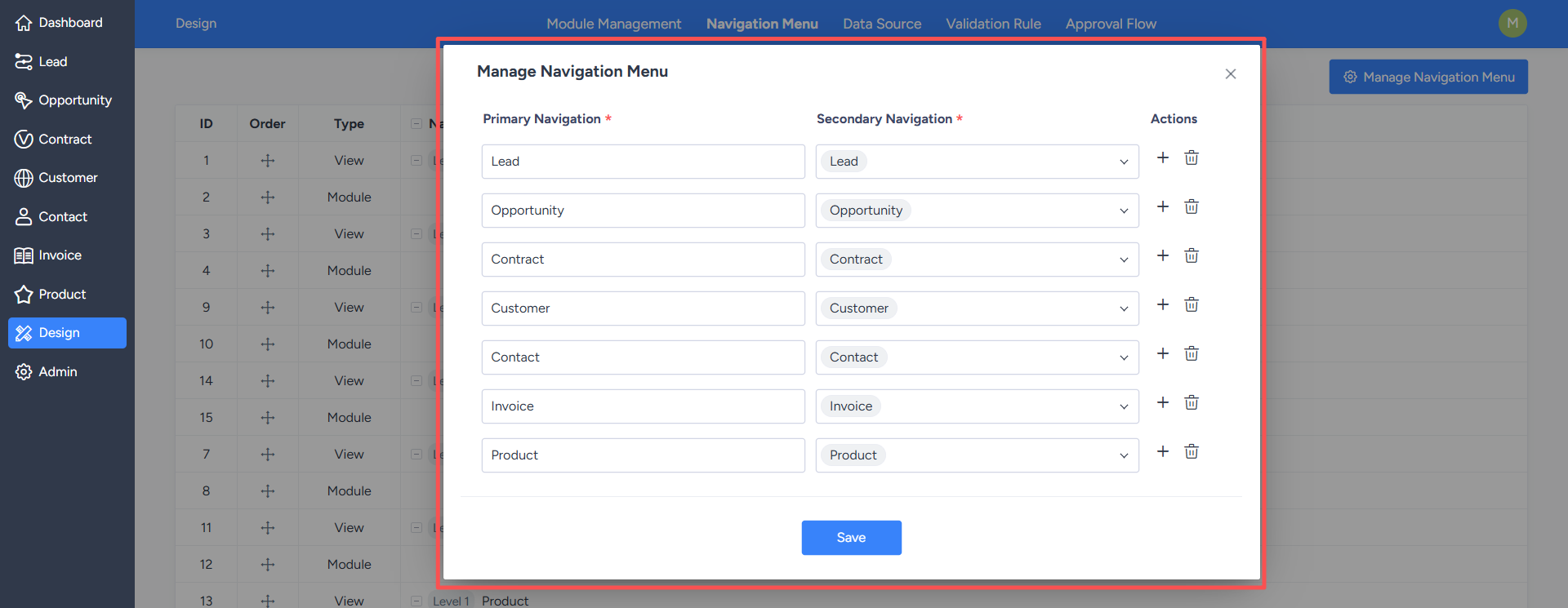
Designers can click the "Maintain Navigation Menu" button in the upper right corner of the navigation menu list page to open the navigation menu maintenance pop-up window.

In this pop-up window, designers can adjust the system navigation, including:
  • Adding, editing, or deleting first-level navigation menus;
  • Adding, editing, or deleting second-level navigation menus;

After configuration, save the settings for them to take effect. The front-end page will display the menu according to the maintained navigation structure.
Write a Comment
Comment will be posted after it is reviewed.