Catalog
Main Table Design
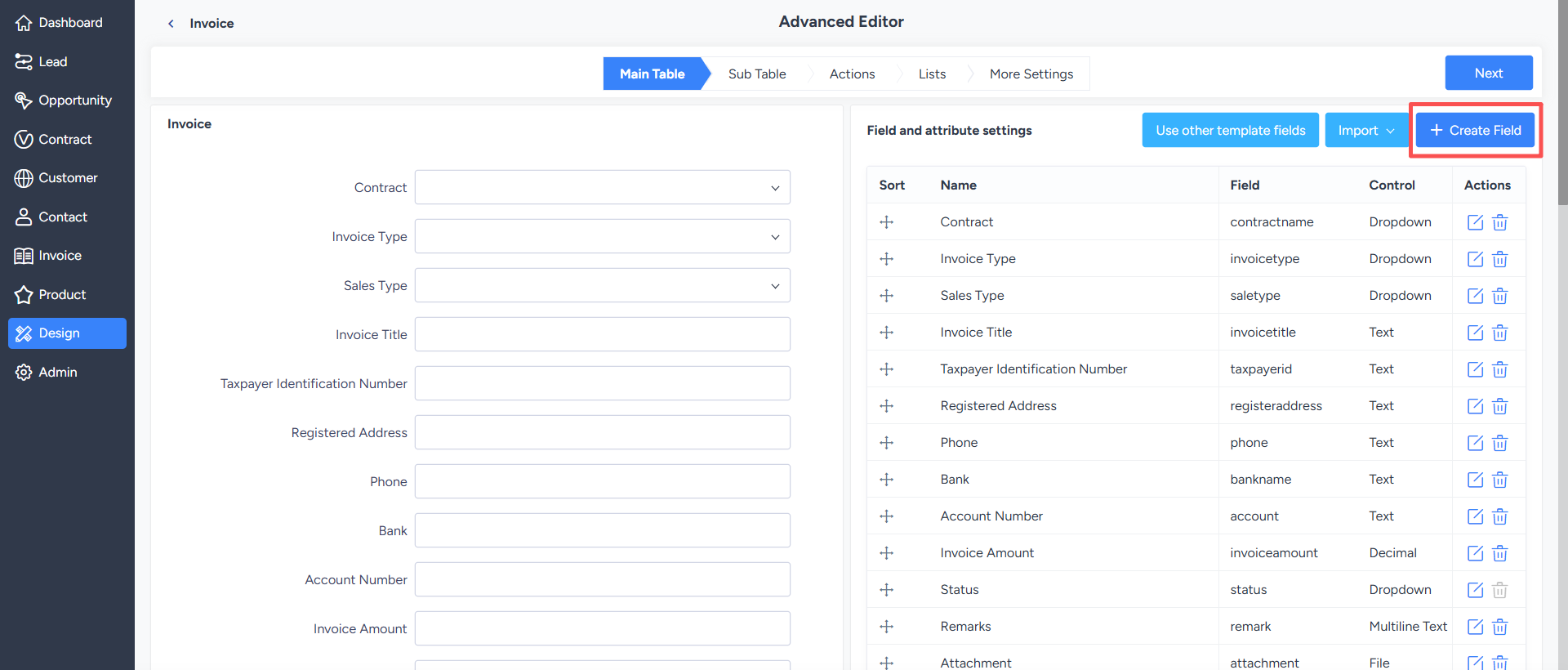
When adding a new module, the system automatically creates the corresponding main database table for that process. The main table includes some built-in system fields by default, which cannot be deleted.
Designers can add new fields according to business needs.
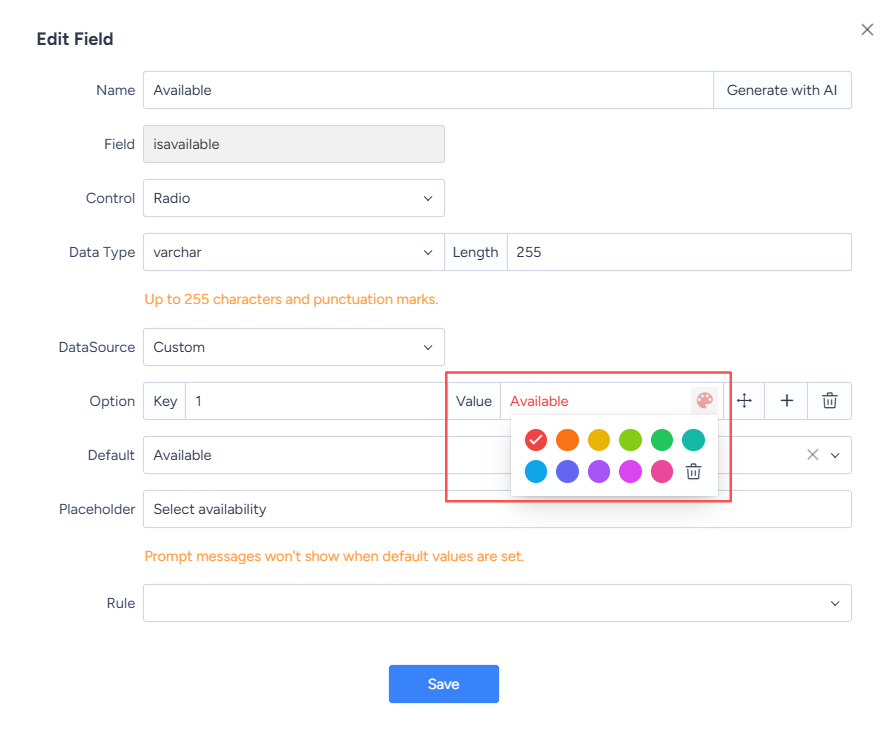
Set different colors for different field values:
When designing master tables and sub-tables, designers can assign different colors to different field values.For example, colors can be used to highlight important information such as status and category, helping users identify key business data more quickly and improving the efficiency of information browsing.
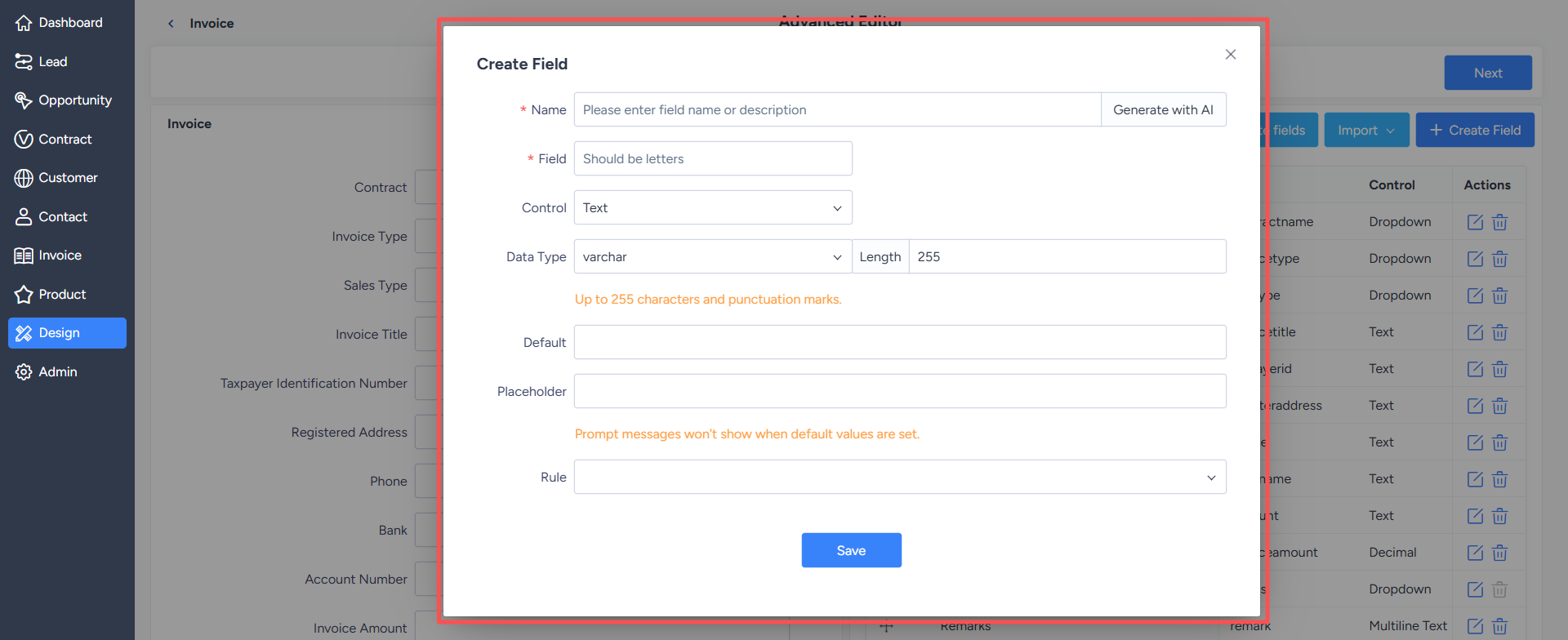
The common control types as follows:
- Decimal, Integer: Used for entering numeric data.
- Date, Time: Date controls are used to select year, month, and day; time controls support selecting hours, minutes, and seconds in addition to date.
- Attachments: Fields used for uploading files.
- Formulas: Used to automatically calculate values based on a set formula; fields involved in the calculation usually need to be numeric.
- Single-choice dropdown, multi-choice dropdown, radio button, checkbox: Requires data source configuration. Data sources can be customized, public data sources, system users, system departments, custom SQL, pre-processes, category settings, etc.
Data source descriptions are as follows:
- System Users, System Departments: Call existing user and department data from the system.
- Custom: Key-value pairs maintained by the designer; for example, status can be set to "Pending Approval," "Approved," "Rejected," etc.
- Previous Process: When the current process is used as a subsequent process, the preceding process can be used as the data source for the foreign key field.
- Category Settings: Used to maintain categorized data, and can also add common category data sources in the common data source.
Field Default Values and Validation Rules:
Fields can also have default values and validation rules set. Validation rules can be selected from those configured in "Module - Validation Rules".
Note: Built-in system fields do not support editing or deletion.