Backend
1. KodeFlex Introduction
1.1 About KodeFlex
2. Installing KodeFlex
2.1 Windows One-Click Installer
2.2 Linux One-Click Installer
2.3 Installing ZAI Service
2.4 Installing from the Source Package (All Operating Systems)
3. Upgrading KodeFlex
4. Platform
4.1. Application Management
4.1.1 Create an Application
4.1.2 Maintenance Application
4.2. Module Design
4.2.1 About the Module
4.2.2 Main Table Design
4.2.3 Sub-table Design
4.2.4 Action Design
4.2.5 Label Design
4.2.6 More Settings
4.2.7 Release Deactivated Modules
4.3. AI Features
4.3.1 Intelligent Conversation
4.3.2 Agent
4.3.3 Skill
4.3.4 Model List
4.4. Application Instance Management
4.4.1 Maintenance Instance
4.4.2 Navigation Menu
4.4.3 Data Source
4.4.4 Validation Rules
4.4.5 Approval Process
4.5. User
4.5.1 Maintain Users
4.5.2 Maintenance Department
4.6. Permissions
4.6.1 Maintenance Permissions
4.7. System
4.7.1 Company
4.7.2 Backup
4.7.3 Authorization Information
4.7.4 Safety
4.7.5 Timing
4.7.6 Time zone
4.7.7 LDAP
5. Business Applications
5.1 Access Applications
5.2. Backend
5.2.1 Personnel Management
5.2.2 Access Management

Personnel Management

2026-06-23 15:07:15
liujinyuan
258
Last edited by liujinyuan on 2026-06-24 13:10:22
Share links

1. Import Users

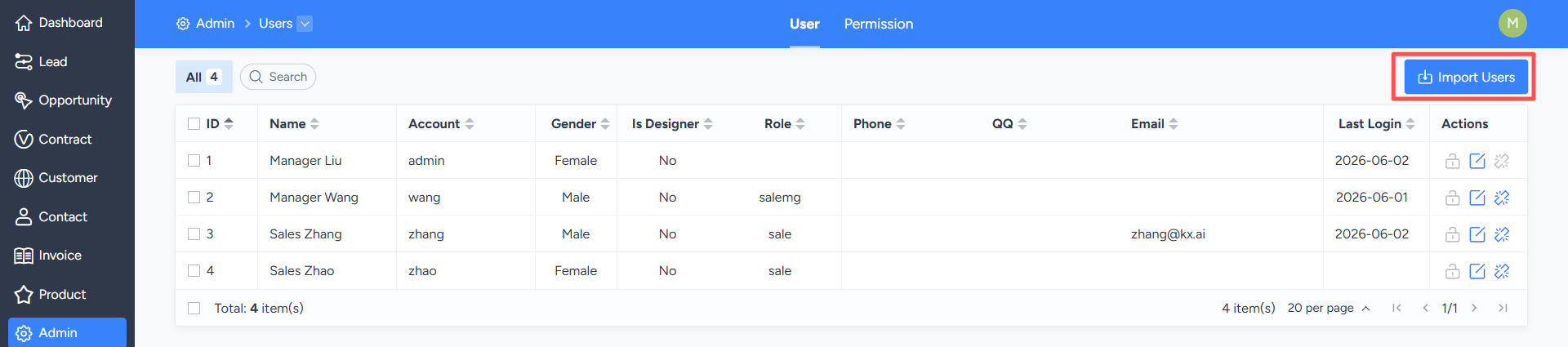
On the "User Management" list page, you can perform operations such as batch importing and batch editing of users.

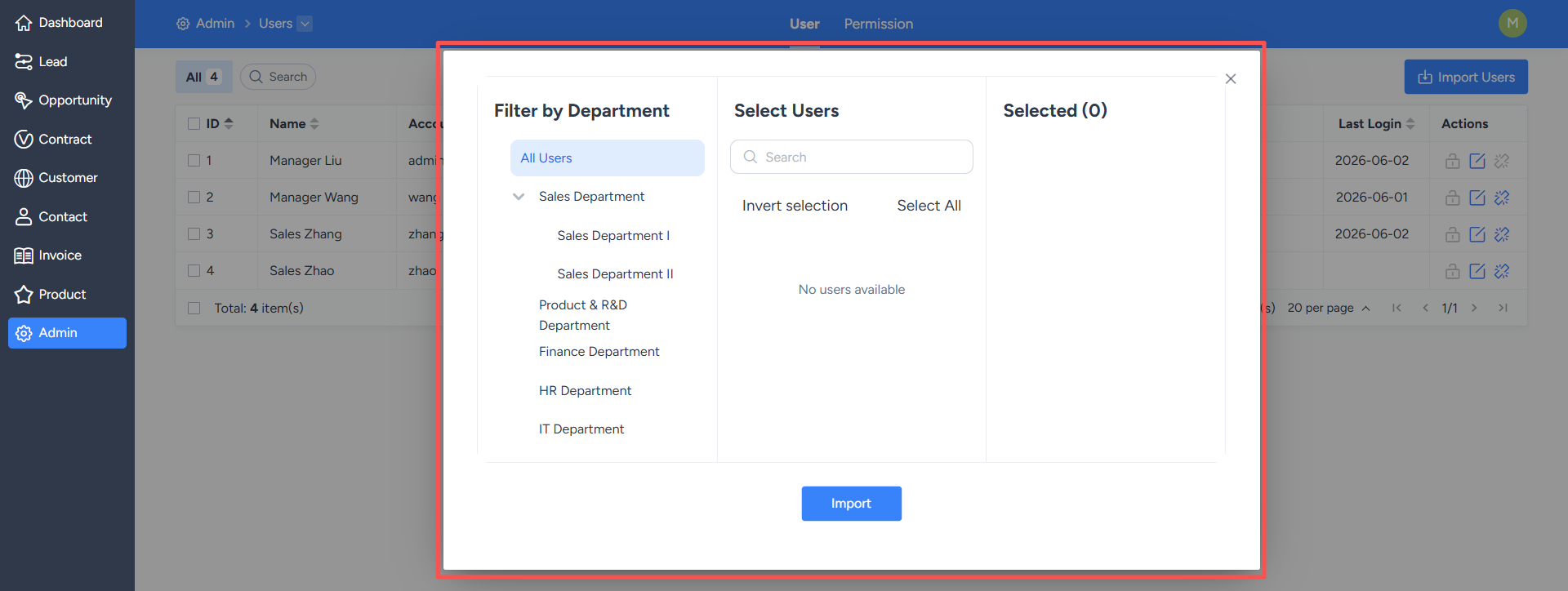
Click the "Import Users" button to enter the user import page.

Click "Import". After successful import, the system will automatically return to the user list and display the newly added users.
2. Batch Edit Users

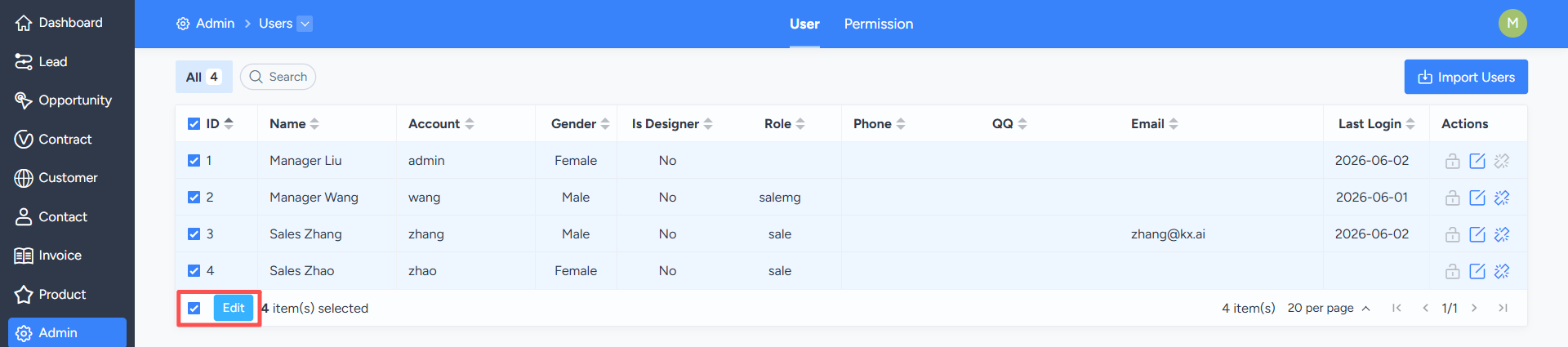
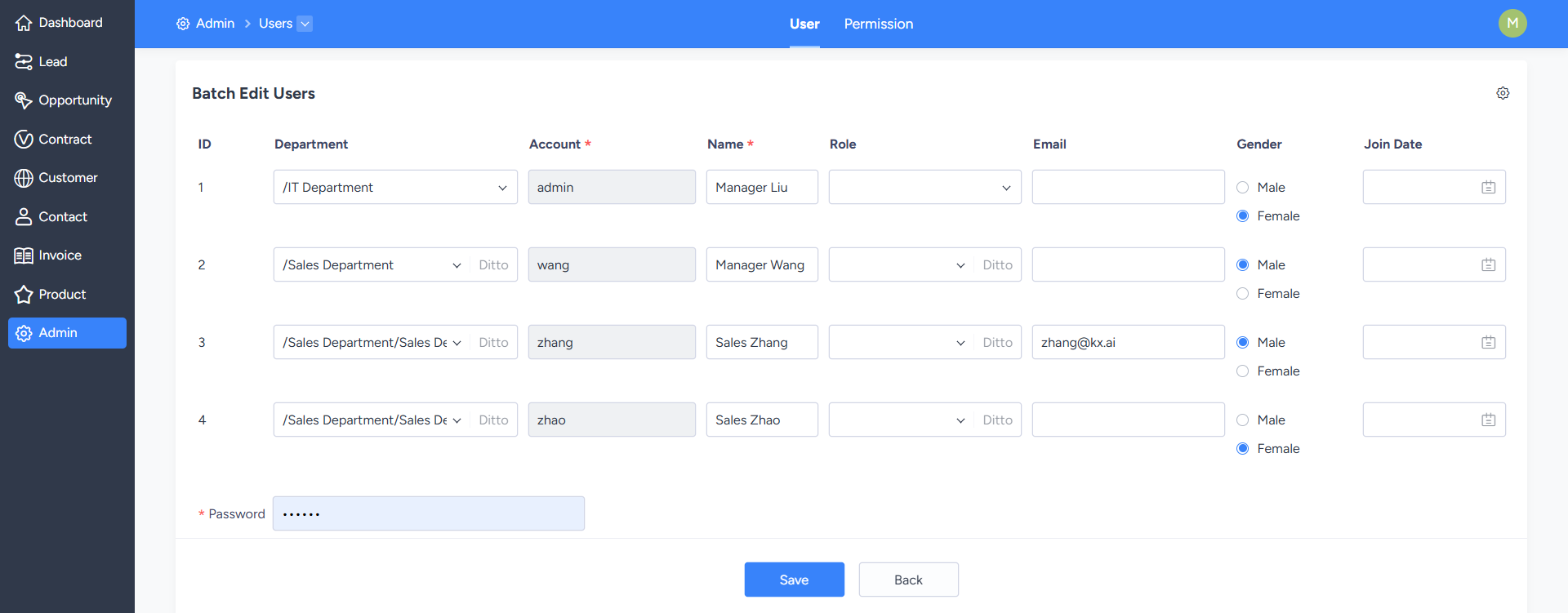
On the user list page, you can click "Select All" or manually select multiple users, and then click the "Edit" button to enter the batch editing page.

On the batch editing page, you can uniformly modify the department, position, and other information of the selected users. After saving, the changes will be synchronously applied to the selected users.
Write a Comment
Comment will be posted after it is reviewed.