Catalog
1. Cross-Process Settings
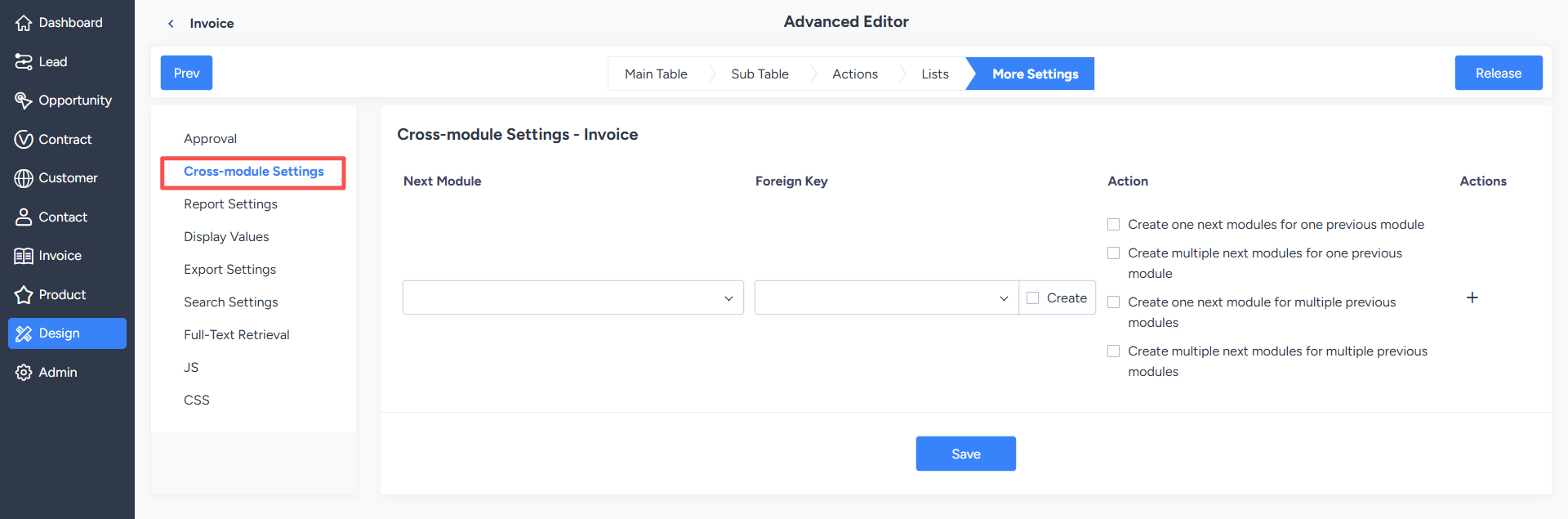
Cross-process settings are used to configure the relationships between two or more related processes. Common scenarios include:- Vehicle information as a preceding process, vehicle reservation as a following process;
- Recruitment management as a preceding process, referral management as a following process;
- Meeting room management as a preceding process, meeting room reservation as a following process.
Through the relevant configurations in the actions, the relationships between preceding and following processes can be set, and the related data can be displayed on the system page.
2. Report Settings
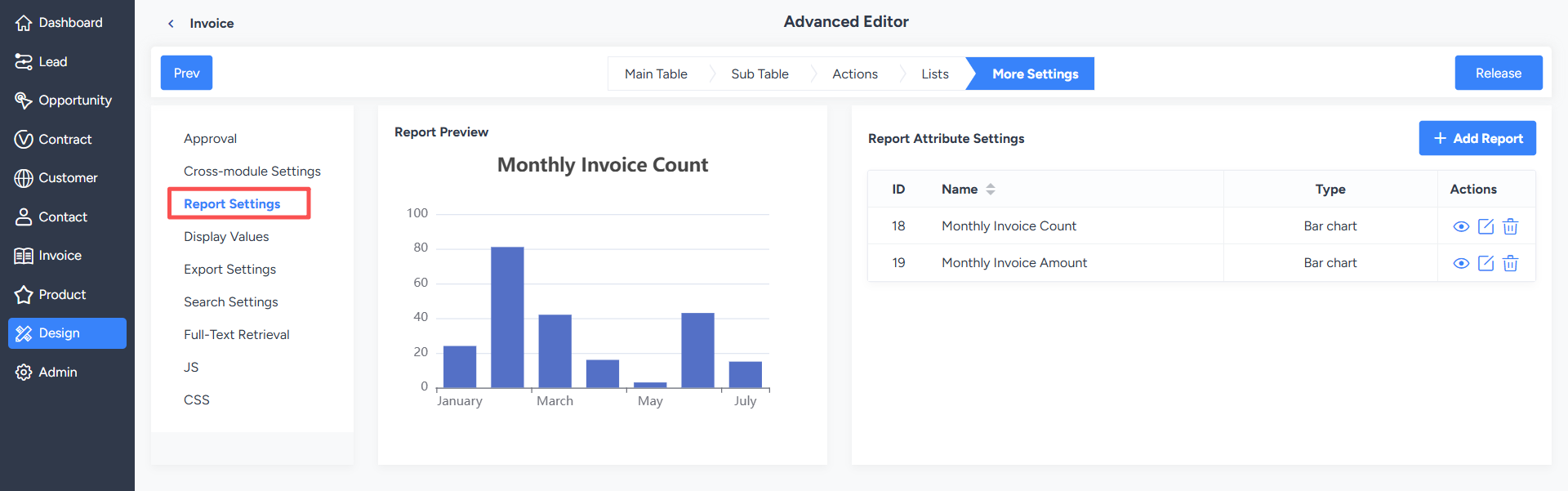
Report settings are used to statistically display process data. The system supports three display formats: pie charts, line charts, and bar charts.The "dimension" in the report can be understood as which field is used for classification and statistics. Statistical types include:
- Count: Counts the number of data entries under each category according to the selected dimension.
- Sum: Summes the specified numerical field according to the selected dimension. Fields used for summation must be numeric, such as integers or decimal fields.
3. Display Value Settings
When a process is configured with cross-process relationships and has subsequent processes, display value settings need to be enabled. Once enabled, the selected preceding process field values can be displayed in the subsequent processes.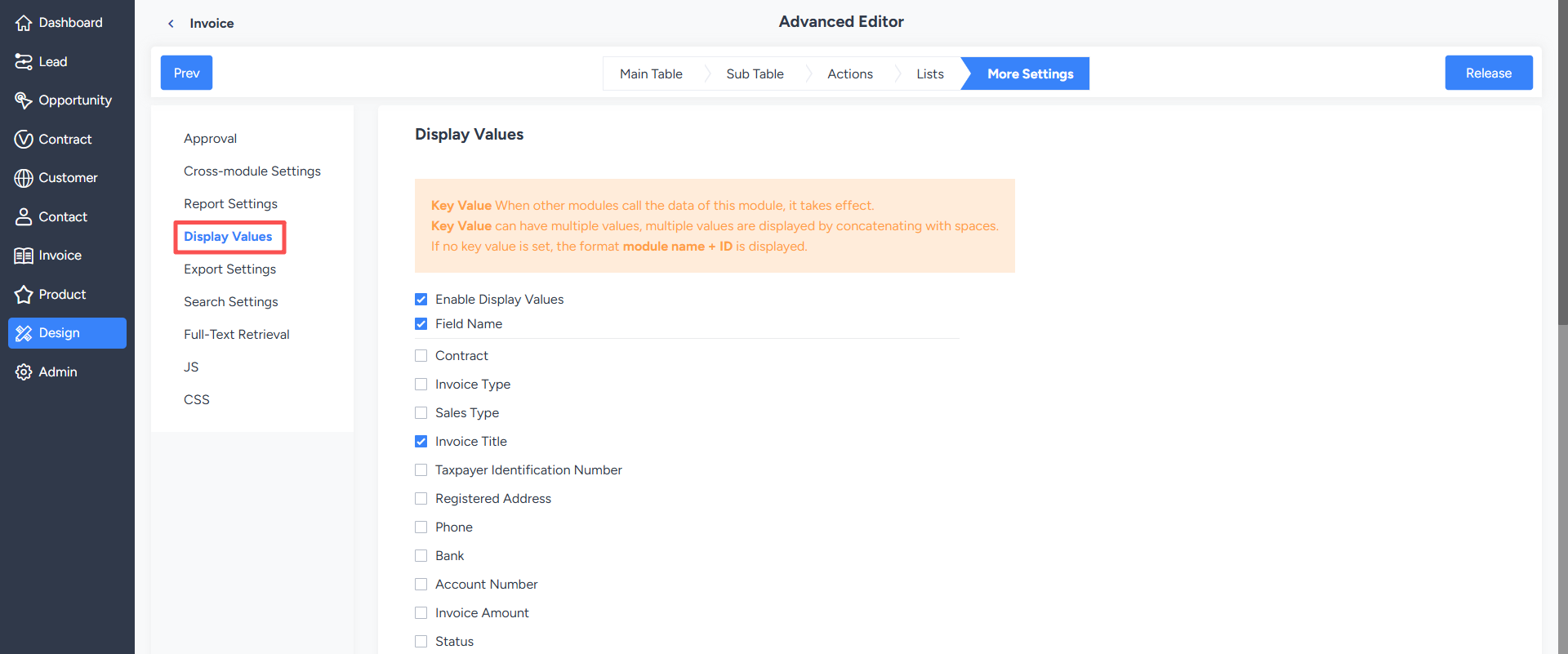
4. Export Settings
After enabling the export action in the action design, the export function also needs to be enabled in the export settings, and the fields allowed to be exported for the process need to be selected.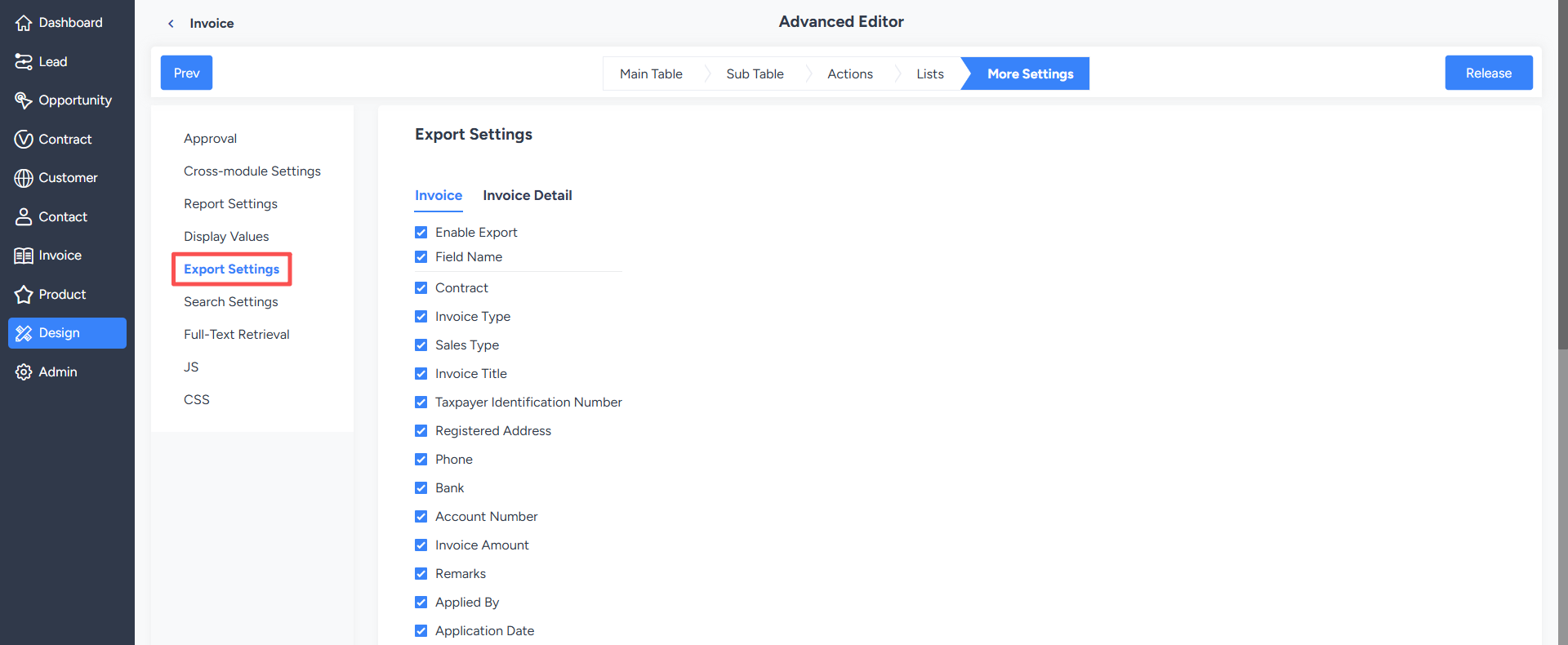
5. Search Settings
After enabling the search function, the process list page can use selected fields to search for data. Designers can set which fields are allowed to be searched according to actual business needs.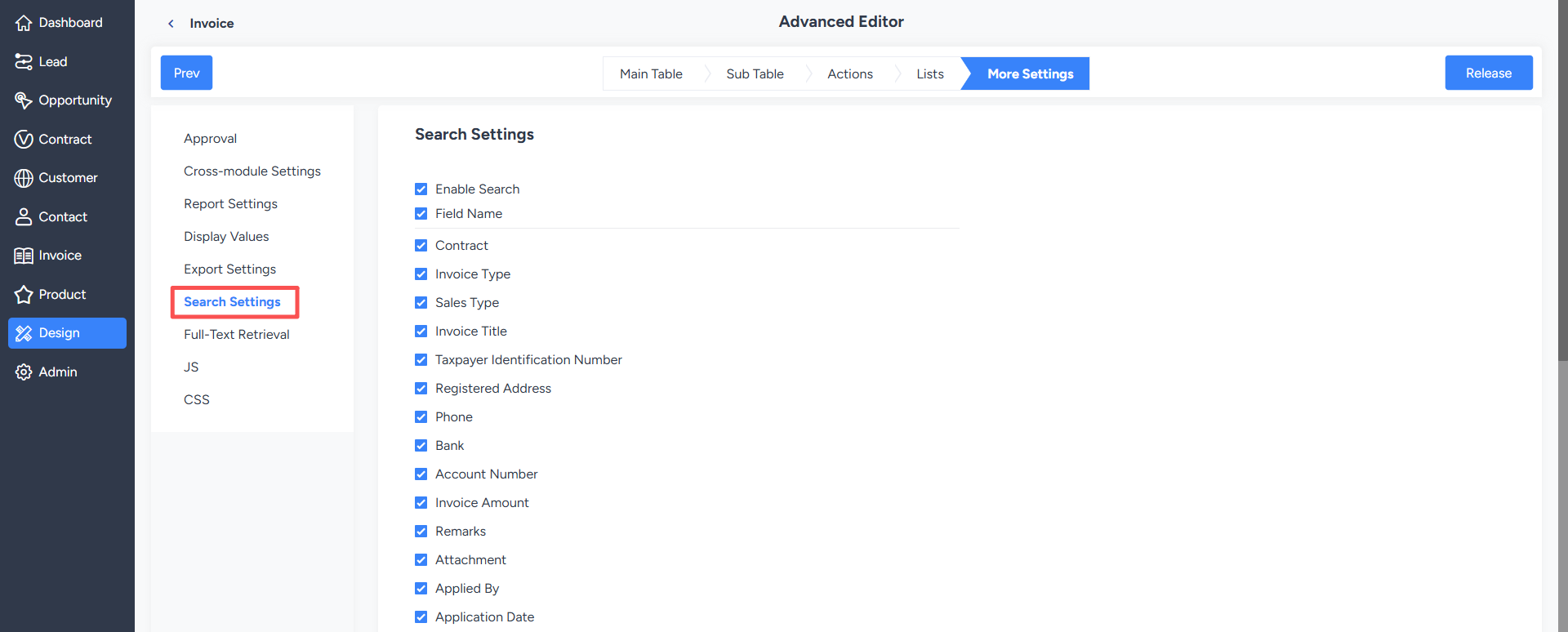
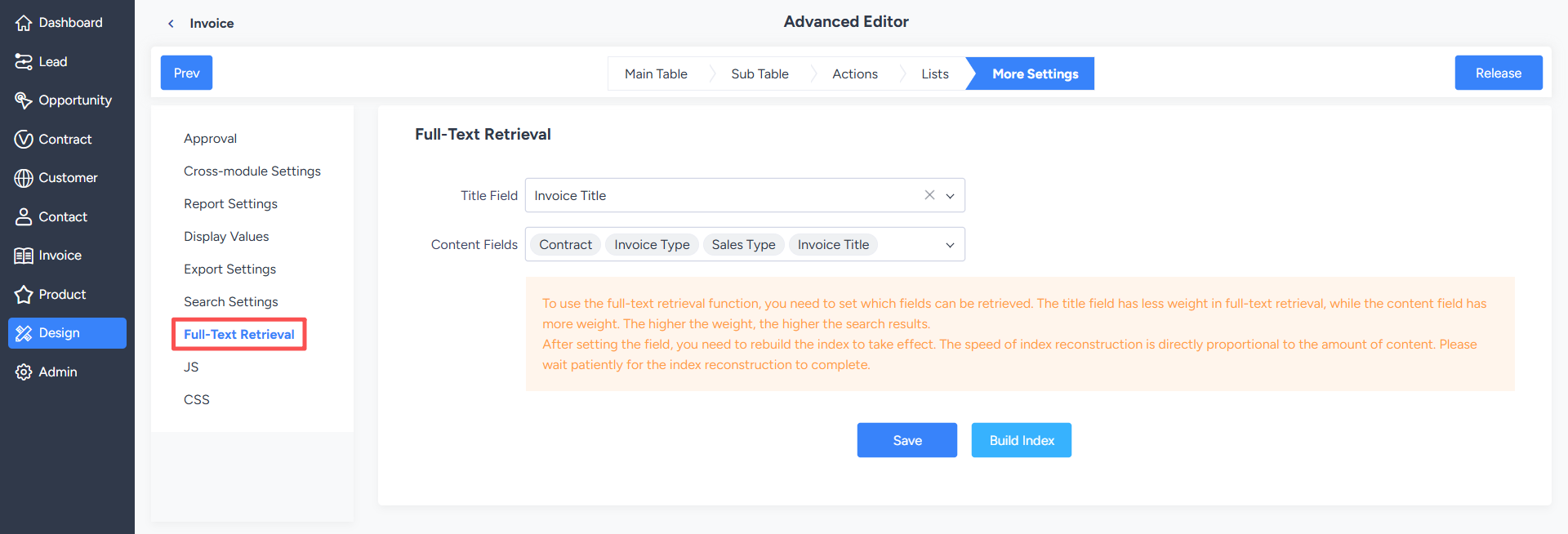
6. Full-Text Search
Full-text search is used to support retrieving data from custom processes in a global search.Configuration method: Save the fields to be searched in "More Settings - Full-Text Search", then rebuild the index for the changes to take effect. When setting fields, the title field has a higher weight than the content field, and therefore will be displayed first in the search results.
Note: Rebuilding the index usually only needs to be performed once when configuring full-text search for the first time; subsequent modifications generally do not require repeating this operation.
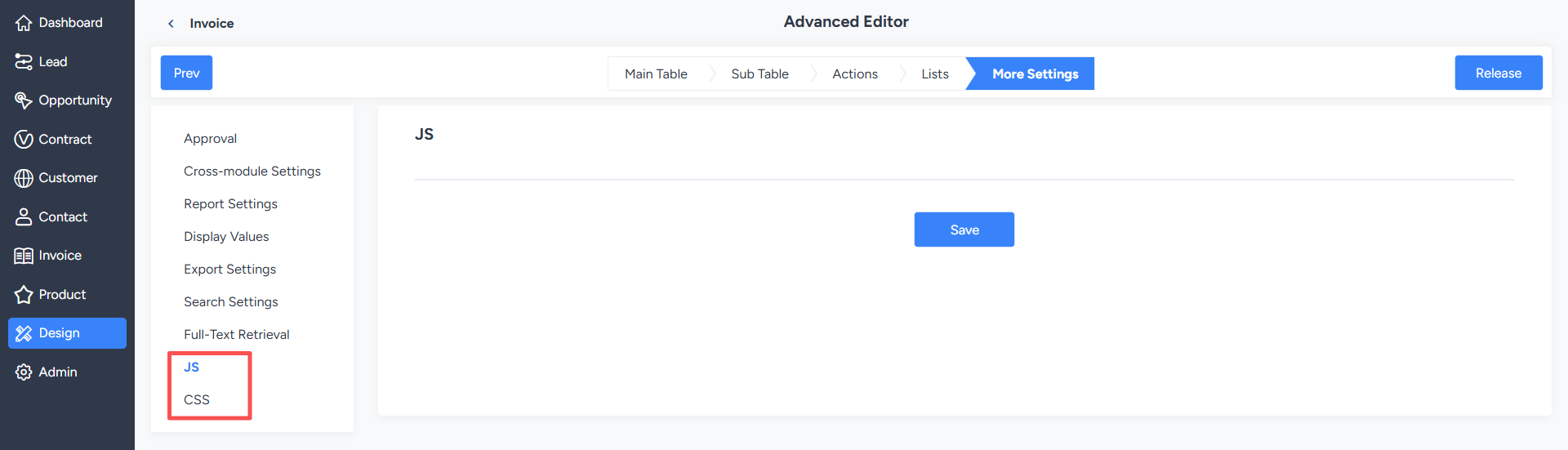
7. CSS and JS
The CSS and JS settings in the "More Settings" section are global configurations for the workflow and will be loaded into all pages of that workflow. They can be used to customize the page styles and interaction logic of the entire workflow.